We have several community contracts where we first pay their cloud bills and
then invoice them for it. Any community paying their cloud bills through 2i2c
must have their hub(s) under a cluster.yaml file declaring
[gcp|aws].billing.paid_by_us=true.
Practically to invoice these communities, we update a spreadsheet for billing
summarizing monthly costs for communities, and then request invoicing help from
CS&S via the #billing slack channel.
This documentation helps you update that spreadsheet for communities on shared clusters and generate CSV files for dedicated clusters.
Communities in shared cloud accounts
We used to run hubs on a shared cluster, but we don’t anymore. There’s only
one hub remaining on shared clusters - Michigan Tech University. We will
migrate it to its
own cluster at some point soon. Until then, since it’s the only hub running
on the two-eye-two-see pilot-hubs cluster, we can use
this report
to roughly approximate the cloud cost of the MTU hub.
Communities with dedicated cloud accounts
Get a community dedicated AWS accounts’s costs
Login to shared AWS SSO at https://
2i2c .awsapps .com /start #/ Select the
2i2c-sandboxaccount, as it is the primary billing accountSelect ‘AdministratorAccess’ to open the AWS Console for this account
Visit the “Monthly Costs By Linked Account” report (direct link) via “Billing and Cost Management” -> “Cost Explorer Saved Reports”
On the right sidebar under “Time -> Date Range”, select all the completed months we want to get data for
On the right sidebar under “Time -> Granularity”, ensure its selected as “Monthly”
On the right sidebar under “Group by -> Dimension”, select “Linked account”
Click the ‘Download as CSV’ button
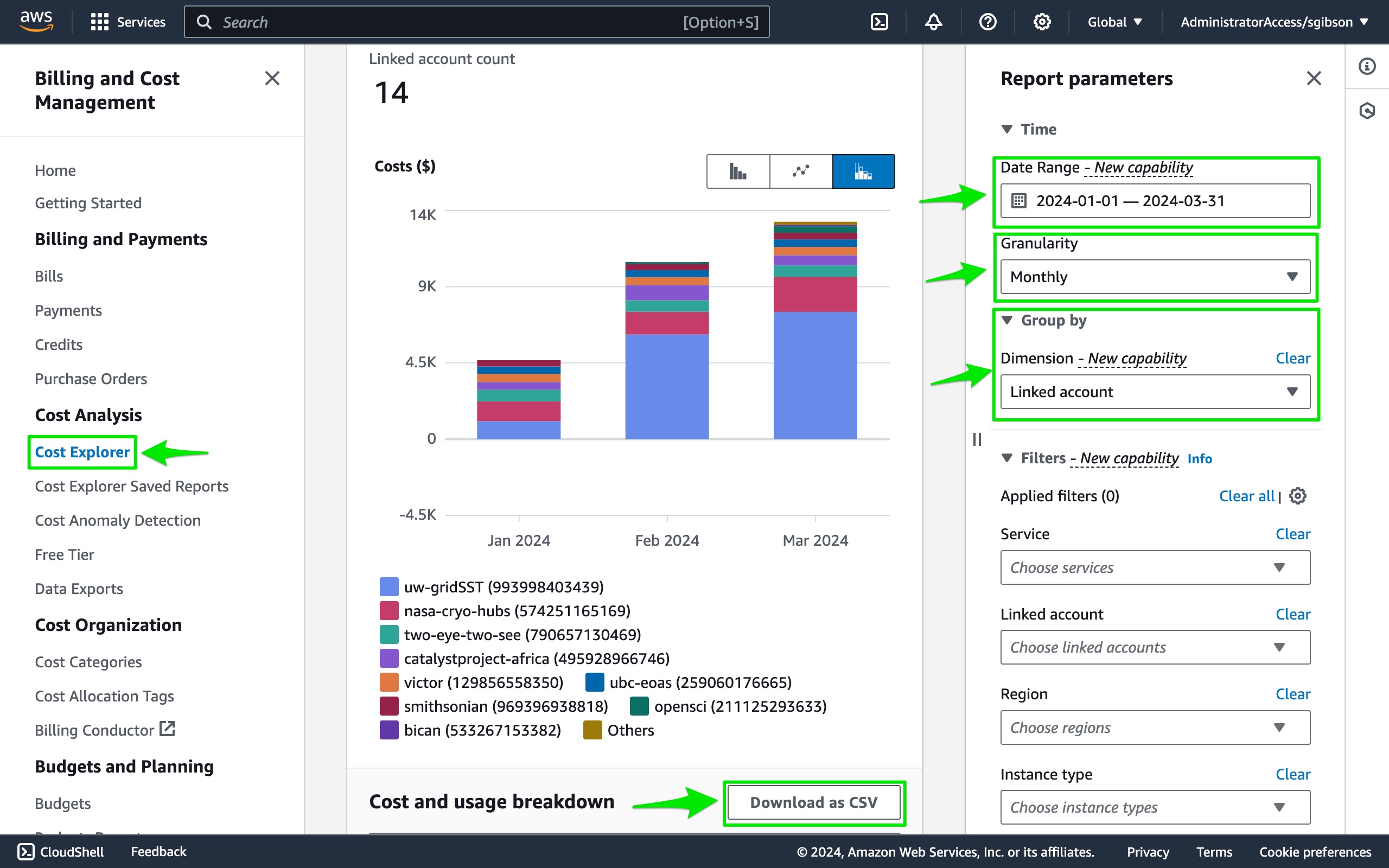
AWS billing UI
Run the following deployer command to convert the generated CSV file into the format required for the invoicing process.
deployer transform cost-table aws pathto/downloaded/csvfileThis will output a new CSV file to your local filesystem called
AWS_{START_MONTH}_{END_MONTH}.csv.Upload this CSV file to the cloud costs folder
As of July 2024, ping James and Harold in the
#billingslack channel to let them know the info for dedicated clusters is now available and provide a link to the file you have just uploaded
Get a community dedicated GCP projects’ costs
Go to the 2i2c billing account on GCP
Select ‘Reports’ on the left sidebar
Under time range on the right sidebar, select ‘Invoice Month’
Select the time range you are interested in. Note that this has to be at least two months right now, or the next step does not work
Under ‘Group by’, select ‘Month -> Project’ or just ‘Project’ if the time range is only one month
Under the chart, click the ‘Download CSV’ button.
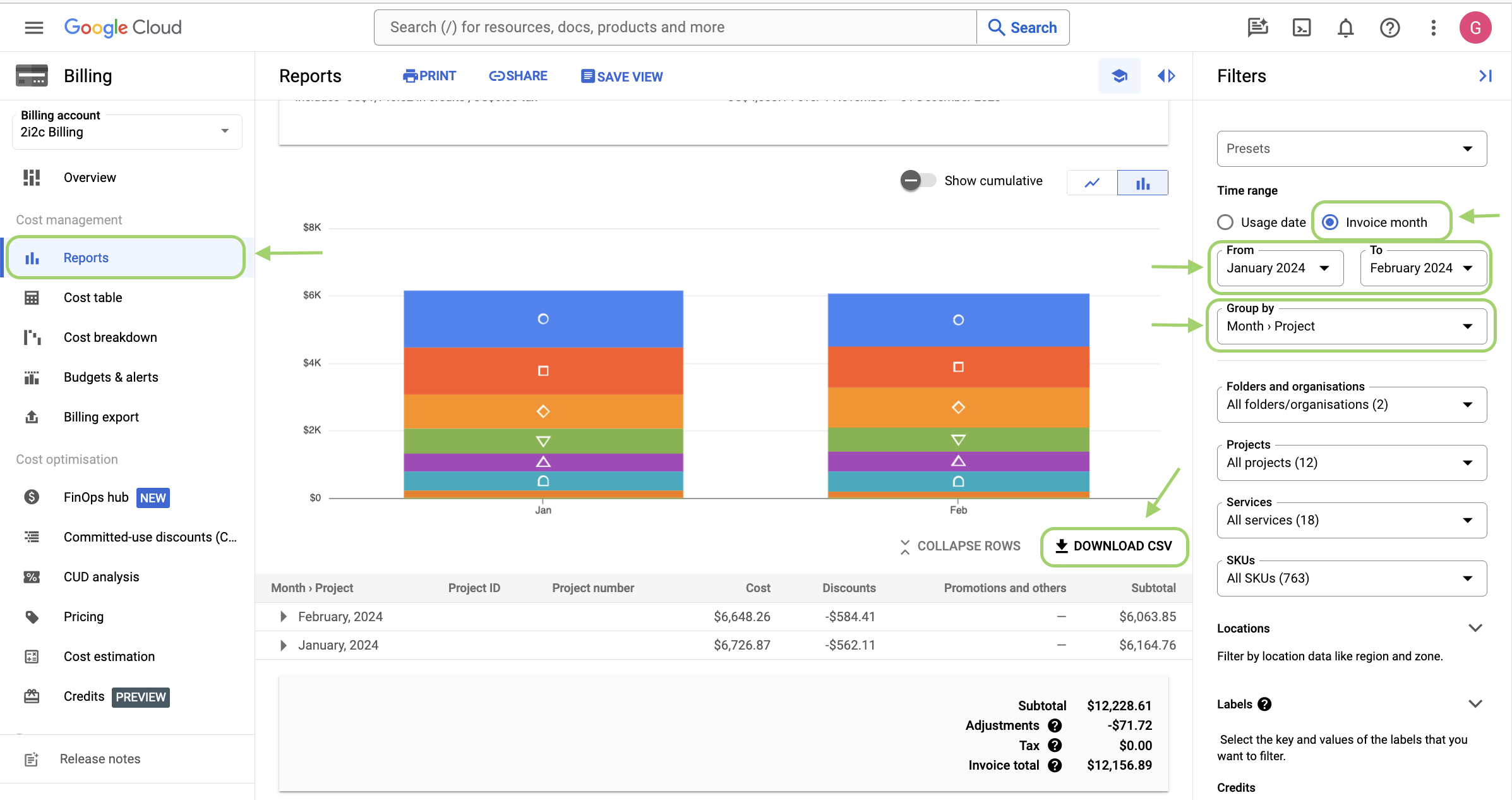
GCP billing UI
Run the following deployer command to convert the generated CSV file into the format required for the invoicing process.
deployer transform cost-table gcp pathto/downloaded/csvfileThis will output a new CSV file to your local filesystem called
GCP_{START_MONTH}_{END_MONTH}.csv.Upload this CSV file to the cloud costs folder
As of July 2024, ping James and Harold in the
#billingslack channel to let them know the info for dedicated clusters is now available and provide a link to the file just uploaded
Get a community’s costs from OVH
We currently have an account on OVH Cloud US, where we pay for a mybinder.org federation member for BIDS.
Go to [https://
manager .us .ovhcloud .com / # /billing /history](OVH US Billing Console) using credentials provided to you. If you don’t have credentials, reach out to Yuvi to get some. Under filter, select:
“Issue Date” as column
“is after” as condition
The start of the month for which we are looking at cloud costs as “Value”. For example, if you’re looking for cloud costs for January 2026, set this value to 1 Jan 2026. The goal is to make sure we get all the invoices that have been issued since our last time, so verify by looking at the last OVH invoices upload.
Under “Actions” click “Export as CSV”.
Go to the Cloud Costs Google Drive Folder and upload this CSV. Rename it to
OVH_<starting-year>-<starting-month>-<starting-date>_<ending-year>-<ending-month>-<ending-date>, based on the first and last entry in the invoice (eg.OVH_2025-12-01_2026-02-01.csv)Post a link to this in the
#billingchannel
Experimental
We have an unfinished attempt to automate collection of community monthly costs. This heading retains documentation about that, but we are for 2024 not driving development here and instead relying on the manual approaches.
Get costs automatically via the deployer (not ready to be used yet!)
The generate cost-table subcommand of the deployer will go through all our
clusters set up on Google Cloud, and tell you how much they cost.
Pre-requisites for running it:
You have all tools required required to work on this repo setup.
Run
gcloud application-default auth login, and authenticate with your2i2c.orggoogle account. This account must have permissions to all GCP projects. This requirement will be relaxed at some point in the future.
There is a private Google Sheet that has monthly costs for all the clusters that are configured to have bigquery export.
This sheet is currently manually updated. You can update it by running
deployer generate cost-table --output 'google-sheet'. It will by default
update the sheet to provide information for the last 12 months. You can control
the period by passing in the start_month and end_month parameters.
If you just want to take a look at the costs in the terminal, you can also run
deployer generate cost-table --output 'terminal' instead.
Caveats
The data comes from bigquery costs export, so is only available and accurate after that has been enabled. For billing data before this was enabled, you need to manually go look in the cloud console.