In certain cases, it might be helpful to ‘scale up’ a node group in a cluster before an event, to test cloud provider quotas or to make user server startup faster.
Azure Console UI instructions
Scaling up a node pool
Login to https://
portal .azure .com using the appropriate cluster credentials Search the
Kubernetes servicesection for the appropriate clusterClick on the cluster name, then go to
Settingsand select theNode poolsoptionClick on the appropriate node pool that you would like to scale up
Then select the
Scale node pooloption from the top of the pageA new window should pop up that looks like this
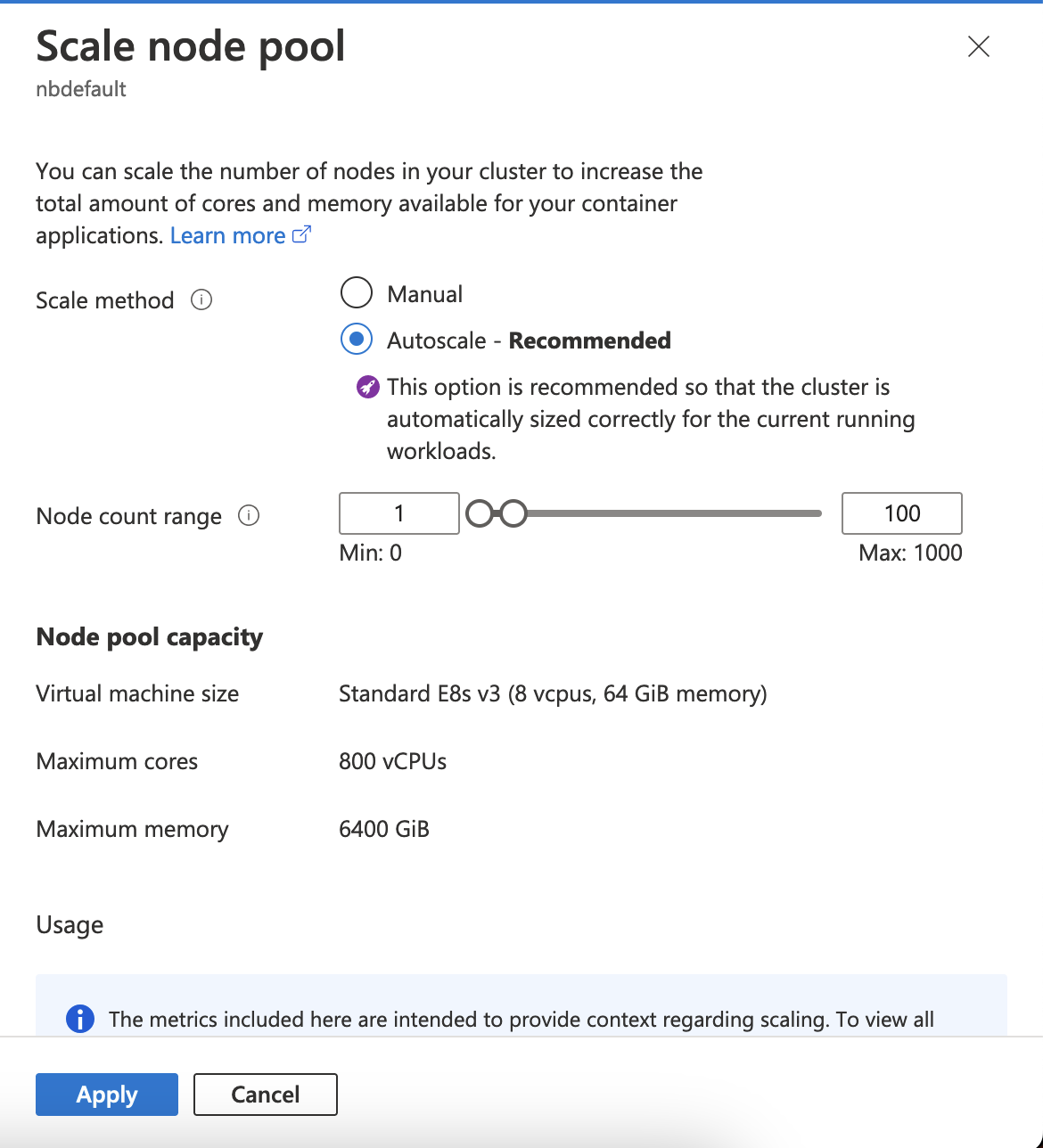
Scale node pool
If the
Autoscaleoption is selected like in the screenshot above (the default, recommended option), then in order to scale up the node pool to an exact number of nodes, temporarily deactivate the autoscaler, by selecting theManualoption, introduce the desired number of nodes then clickApply.After the Apply succeeded, you should see the new nodes coming up. You can then click on
Scale node pooloption again, enable theAutoscale, and set theMinnumber of nodes to the desired one the you set in the step before.
Scaling down a node pool
Follow the first six steps in the scaling up guide above, until you get to the
Scale node poolwindow.This time, do not activate the
Manualmode, and just adjust theMinnumber of nodes for the autoscaler. As users stop their servers after the event, eventually a scale down event will be triggered, and the autoscaler will adjust the node pool size according to the limits that are set.
Terraform instructions
TODO